


Google Slides, now with real-time learner interaction
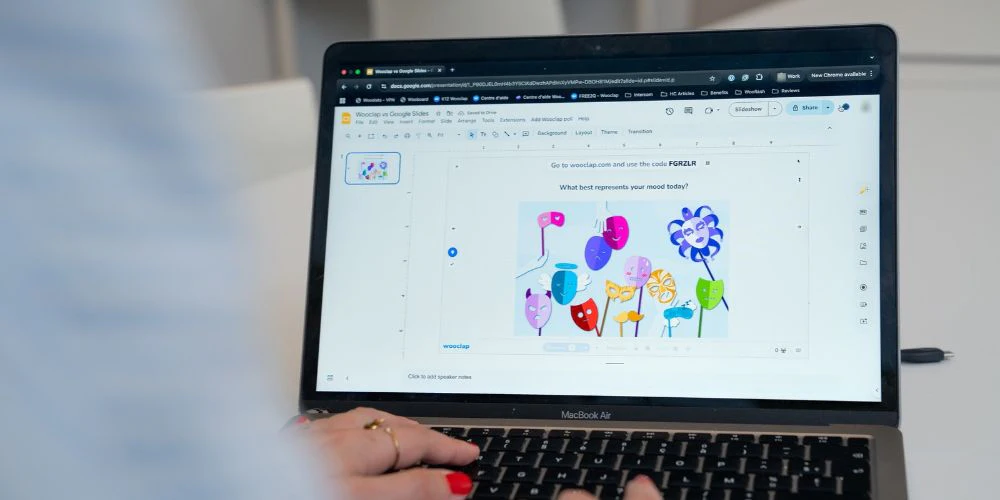
With Wooclap's browser extension for Chrome and Firefox, you can insert these live interactions directly into your existing Google Slides deck as dedicated slides.
Three reasons to make your Google Slides more interactive with Wooclap
No tool switching, ever
Questions are inserted as slides directly in your deck. When you present, Wooclap activates automatically at the right moment, no second tab, no separate link, no interruption. You stay in your presentation from start to finish.
Your slides, unchanged
Wooclap questions are added as new slides without touching your existing design, layout, or animations. You keep full control of your deck while adding a layer of real-time interactivity between your content slides.
Two ways, one result
Use the browser extension to embed Wooclap directly inside Google Slides or publish your Google Slides presentation and import it into Wooclap to toggle between slides and questions from a single interface. Both approaches keep your audience focused and participating.
Interactivity that flows with your content
By inserting Wooclap questions as slides in your deck, you control exactly when interaction happens. The moment you advance to a question slide, voting opens automatically and results appear live on screen. There's nothing for you, or your participants, to set up.

Learners join from any device, instantly
Participants can respond from any smartphone, tablet, or computer using a browser. No app download, no account required on their end. Whether you're in a lecture hall, a classroom, or teaching remotely, everyone can join the same live session from wherever they are.

How to use Wooclap in Google Slides
Install the browser extension
Add the Wooclap extension to Chrome from the Chrome Web Store, or to Firefox from Firefox Add-ons. Installation takes under a minute and requires no technical configuration. Once installed, an "Add Wooclap poll" button appears directly in your Google Slides toolbar.
Insert questions into your deck
Click the toolbar button, select the Wooclap event you want to draw from, choose a question, and click Insert. A new slide is added to your deck at the current position. Drag and drop it anywhere in the slide panel to place it exactly where you want the interaction to occur.
Present as usual, questions launch automatically
Start your slideshow normally. When you reach a Wooclap question slide, voting opens automatically and participants can respond in real time from their devices. Results appear on screen as they come in. You never need to switch windows or trigger anything manually.
How trainers use Wooclap with Google Slides
Wooclap's Google Slides integration fits naturally into any slide-based teaching or training workflow, for educators who already work in Google's ecosystem.
University lectures
Professors insert comprehension checks and live polls between content slides to break up long lectures, verify understanding in real time, and keep students actively engaged throughout the session.
Google Classroom environments
Teachers in schools that already use Google Workspace add Wooclap questions directly to their lesson decks, keeping the workflow entirely within tools their students already know.
Corporate workshops and training sessions
Trainers and L&D facilitators use the extension to turn standard presentation decks into interactive experiences, gathering participant input on key topics without breaking the flow of the session.
Hybrid and remote teaching
Educators presenting remotely share their Google Slides screen while Wooclap collects responses from both in-room and online participants simultaneously, displayed live on the shared screen.
Create questions faster with Wooclap AI
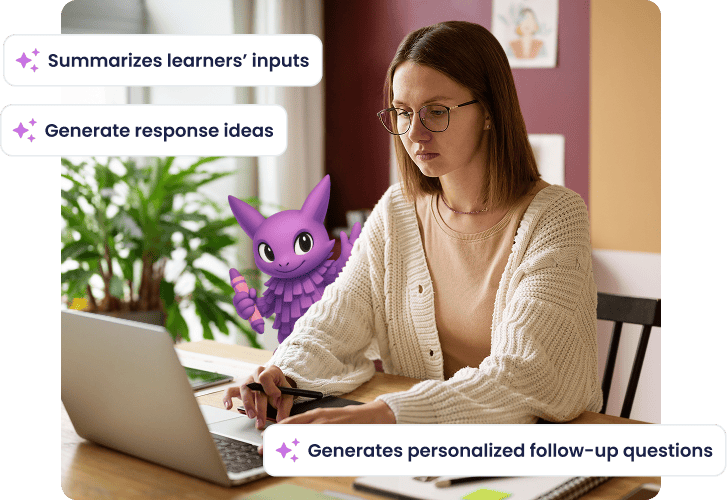
Before your next Google Slides session, Wooclap AI can help you build your question set in seconds. Generate MCQs, open questions, or word clouds from any topic or content, then insert them directly into your deck with the extension. Less prep time, more engagement during your session.
Everything you need to make Google Slides interactive
Install the Wooclap Chrome or Firefox extension to insert live questions between your Google Slides. Polls appear in full screen during your presentation, no tab switching, no disruption, no separate device needed.
Browser extension for Chrome and Firefox
Install the Wooclap add-on from the Chrome Web Store or Firefox Add-ons in under a minute
Insert questions as slides directly in your deck
Use the "Add Wooclap poll" toolbar button to embed any question from your Wooclap event as a dedicated slide
Automatic voting on presentation
When you advance to a question slide during your slideshow, live voting opens instantly, no manual trigger or tab switch required.
Drag-and-drop slide positioning
Reorder question slides freely within your presentation using Google Slides' slide panel, just like any other slide in your deck.
Alternative: embed Google Slides into Wooclap
Publish your presentation to the web and add it directly to a Wooclap event, then use keyboard shortcuts to switch between slides
Participants join from any device, no download needed
Learners respond from any browser-enabled device. No app, no account, no barrier to participation.
Add Wooclap to Google Slides
Install the free browser extension and insert your first live question into any existing deck in minutes. No redesign, no disruption , just more engagement, right inside your slides.

Frequently asked questions
Have questions? We’ve got answers to help you get the most our your....
Discover more
 Integrations
How to make an interactive Google Slides presentation
Discover how to make an interactive presentation with Google Slides!
 Integrations
Wooclap's LTI Integration 1.3, a game-changer for LMS interoperability
Wooclap revolutionizes LMS interoperability with its LTI 1.3 integration
 IntegrationsProduct update
Create your Wooclap questions directly in PowerPoint
You can now create your Wooclap questions directly from PowerPoint!